
How Carlinkit TBox Lets You Watch Netflix While Traveling
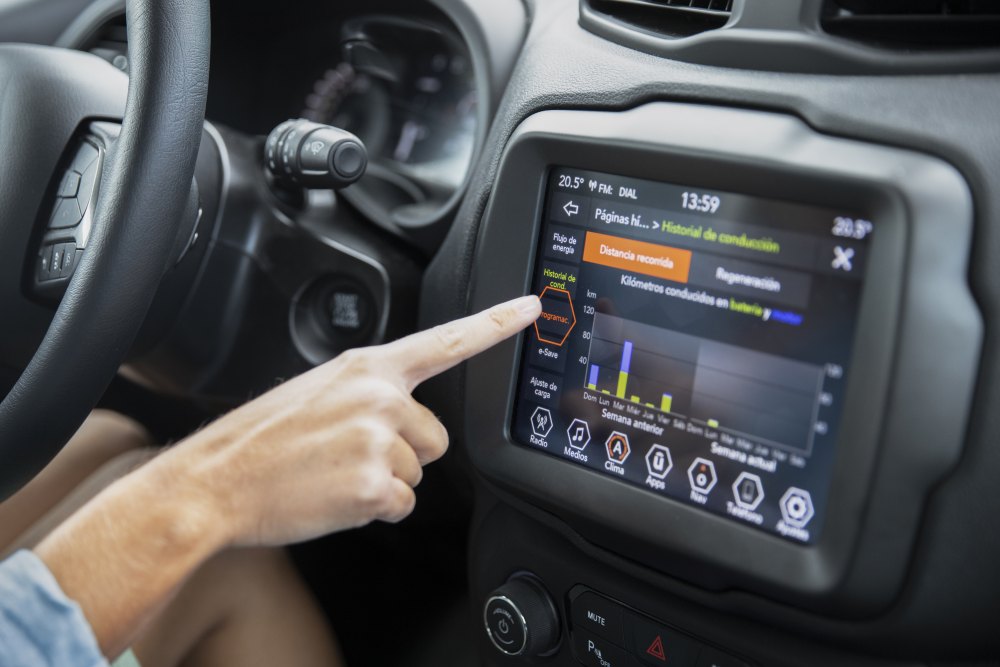
Carlinkit TBox lets you stream Netflix and other apps like YouTube right in the car. It’s got a built-in Android system and a fast setup, turning your vehicle’s screen into a media player. The device works with lots of cars and different connection types.
Plug-and-Play Setup for Instant Streaming
Just connect Carlinkit CarPlay to your car’s HDMI or USB port. No mess of wires or tricky installation. Plug it in, follow a couple of on-screen steps, and you’re streaming in minutes.
Travelers can jump into streaming services during stops or on long drives without fumbling for their phones. The TBox bridges your car’s display with smart features, so you’re not stuck using your phone to control videos.
Built-In Android System for In-Car Entertainment
Carlinkit TBox runs a full Android OS. You can download and run Android apps right in the car—Netflix, YouTube, and anything else from the Play Store.
The interface feels familiar and easy to use. There’s touch-screen control, app management, and even a web browser. It really does turn your car into an entertainment hub, no phone required.
Netflix and Supported Streaming Apps
Netflix is either already installed or you can grab it from the Play Store on the TBox. As long as your car’s got a decent internet connection, streaming runs smoothly.
You can also use YouTube, Amazon Prime Video, Spotify, and more. Just download what you want. Of course, streaming quality depends on your data connection, so that’s something to keep in mind.
Device Compatibility and Requirements
Carlinkit TBox works with most cars that have HDMI or USB video input. It’s best with touchscreen displays and factory head units.
You’ll need a Wi-Fi hotspot or mobile internet to stream. If your data connection is shaky, you’ll get buffering. Compatibility can vary, so double-check your car model before buying.
Step-By-Step Guide: Setting Up Netflix with Carlinkit TBox
Getting Netflix running on Carlinkit TBox is pretty straightforward. You’ll connect the TBox, log in to Netflix, and make sure your network and video settings are dialed in. Each step matters for smooth playback.
Connecting Carlinkit TBox to Your Car
Plug the TBox into your car’s USB port. It works with Android Auto systems, so the infotainment screen usually recognizes it after a quick setup.
If the TBox asks to install or update software, just follow along with the on-screen instructions. Once you’re connected, you’ll see a new menu for apps like Netflix.
Keep the car in park during setup—it’s safer. Make sure your infotainment system supports Android Auto for everything to work right.
Signing In and Configuring Netflix
Open Netflix from the TBox menu on your car’s screen. If it’s not there, download it from the TBox app store, just like you would on an Android device.
Use the touchscreen keyboard or a paired phone to enter your Netflix login. That’s it—you’re in.
You can tweak Netflix settings like subtitles or playback quality in the app. The TBox gives you full video controls, so pausing or rewinding is easy.
Optimizing Network and Playback Quality
The TBox needs internet for streaming. Connect it to your phone’s hotspot or a solid Wi-Fi network to avoid hiccups.
Test your network speed before hitting play. For HD, you’ll want at least 5 Mbps download speed.
If the video gets choppy, drop the resolution in Netflix settings. That helps cut down buffering if you’re driving through spotty areas.
If you’re using a mobile hotspot, turn on data saver to avoid burning through your plan.
Alternative Methods to Stream Video Content in Your Car
There are other ways to watch videos like Netflix in the car. Some folks use apps for screen mirroring, others try installing third-party software, or even replace their car’s system software to unlock streaming.
Using Screen2Auto for Screen Mirroring
Screen2Auto lets you mirror your phone’s screen to the car display. You run the app on your Android phone and connect via USB or Wi-Fi. That way, you can play Netflix on the car screen while controlling it from your phone.
How well it works depends on your car’s Android system and your phone model. It does get around Android Auto’s video restrictions, but you’ll want the latest version and a reliable connection to avoid lag.
Screen2Auto doesn’t make permanent changes to your car system. It’s quick to set up and doesn’t require much tech know-how.
Third-Party Apps and APK Installation
Some people install third-party apps or APKs straight onto their car’s Android system. That way, you don’t need to connect your phone every time you want to stream Netflix.
Your system has to allow APK installation, which isn’t always the case. You’d need to enable developer settings and find safe APKs—there are risks, like security issues or system glitches.
This method gives you a native app experience, but it’s best for users who know their way around Android.
Utilizing Custom ROMs and Android Emulators
Custom ROMs swap out your car’s original Android system for a modified version. That can unlock video playback features that the factory software blocks.
It’s not for the faint of heart—installing a custom ROM is tricky and voids warranties. You need some technical chops to pull it off. Once you’ve got it running, you usually get full access to streaming apps.
Android emulators run inside the car system (or on an attached device). They simulate a full Android environment, so you can run more apps, including Netflix. This approach takes more setup and sometimes extra hardware.
Enhancing Your In-Car Theater Experience
Carlinkit TBox brings features that make watching Netflix and using apps like YouTube in the car a better experience. There’s support for multiple audio devices, handy accessories, and safety settings to keep things smooth and secure.
Dual Bluetooth Connectivity for Audio Devices
The TBox lets you connect two Bluetooth devices at once. Passengers can use wireless headphones or speakers without hogging the car’s main audio system.
Dual Bluetooth means people can listen privately or together, however they want. It works well with Android and supports Bluetooth 5.0, so connections stay steady.
If a device disconnects, the TBox will try to reconnect automatically. That helps keep your Netflix or YouTube audio from cutting out. Audio lag is minimal, so sound stays in sync with the video.
Recommended Accessories and Upgrades
Some accessories just make sense with the TBox. Wireless Bluetooth headphones are a must for comfy viewing without bugging the driver.
A portable power bank is handy on longer trips, especially if your car’s USB ports can’t deliver enough juice.
If you want the smoothest experience, consider upgrading to a head unit that fully supports Android and Carlinkit. It helps prevent crashes or lag during streaming.
Screen protectors and sunshades keep the display clear, even in bright sunlight. These little upgrades can make a big difference for everyone in the car.
Managing Parental Controls for Family Safety
The TBox’s Android system includes parental controls to help keep kids safe while streaming. Parents can restrict certain apps or block mature content on Netflix.
You can set time limits on video watching, so kids don’t overdo it.
Profiles let you customize content by age, keeping things appropriate. The controls are easy to tweak from the main menu, so adults can adjust restrictions on the fly.
Safety and Legal Considerations for In-Car Video Streaming
Watching video while driving isn’t safe, and the laws are pretty strict in most places. Use Netflix and other streaming services only when the car’s parked, or let passengers enjoy them—not the driver.
Travel can sometimes be a way to discover who you really are
Snag a free workbook and get inspiration on all the ways to love your life even more.
>>Click Here to Discover Additional Articles on the Power of Decision Making <<
You May Also Find These Articles Helpful
 Are You “Too Social” on Social Media About Your Relationship?
 Managing as an Extrovert When You Feel Lost in the Cold Months
 Meditation Without Fear: Five Simple Tricks to Help You Begin a Meditation Practice
 Fourteen Productivity Tips When Working At Home
 Shared Ritual Is You Choosing Love Over Fear